
Figma to WordPress With ACF Flexible Content
If you are converting a Figma design into WordPress and want the site to stay editable, scalable, and easy for clients to manage, ACF Flexible Content is one of the strongest ways to build it. It works especially well as a WordPress layout builder because it lets you create reusable page sections that match the structure of your design instead of locking everything into one rigid template.
For a workflow-oriented implementation, the Figma2WP Service positions ACF as part of a structured field-group approach, with clear guidance on when to use Flexible Content versus Repeater fields and how to keep the editing experience clean for teams and clients. That matters because the conversion from design to WordPress is not just about visual accuracy; it is about making the final site practical to maintain after launch.
Designing for flexibility before the build starts
The most efficient Figma-to-WordPress projects begin in the design phase, not during development. Figma2WP notes that when you are designing in Figma, you should already think about content structure, custom fields, and how the final WordPress editor will be organized. That advice aligns with the broader conversion process described by other WordPress implementation guides, which recommend finalizing design structure, selecting a conversion method, and then mapping sections into reusable components.
This is where ACF Flexible Content becomes valuable. Instead of hard-coding every page as a unique template, you can define a set of layouts such as hero banners, testimonials, service grids, FAQ blocks, and call-to-action sections, then let editors assemble pages from those blocks. In practice, this creates a controlled but flexible editing model that fits many marketing sites, SaaS websites, agency sites, and content-heavy company pages.
What to plan in Figma
Before development begins, it helps to audit each Figma page into repeatable section types. A good handoff usually includes:
- hero section
- rich text section
- image and text split layout
- services or feature grid
- testimonial strip
- FAQ accordion
- CTA block
That section-based approach mirrors how ACF Flexible Content is commonly structured in WordPress field groups. It also makes the final site easier to manage because each section has a clear purpose and a limited set of inputs rather than a single oversized content field.
Why ACF Flexible Content is a strong WordPress layout builder
ACF is more than a field plugin; it lets you add custom fields such as images, videos, links, and text, and it supports custom field-group structures for different types of content. Flexible Content is especially useful when a page needs multiple layouts inside one content area, because you can create several layout options and then choose them per page as needed.
Breakdance’s ACF Flexible Content walkthrough shows the typical pattern: create a field group, add a Flexible Content field, define layouts, and then connect each layout to a template for front-end output. That makes it a practical WordPress layout builder for teams that want modular pages without giving up design control.
Compared with a standard content editor, Flexible Content offers a better balance between freedom and consistency. Compared with a fully custom-coded page for every endpoint, it reduces duplication and makes future edits faster.
Flexible Content vs Repeater
Figma2WP explicitly highlights the decision point between Flexible Content and Repeater fields in many projects. The usual split is straightforward: use a Repeater when the section stays the same structurally and only the items repeat, and use Flexible Content when each block may have a different layout or different field set.
For example, a pricing table with several identical columns may be a Repeater use case, while a landing page with alternating media blocks, testimonials, and feature panels is a better fit for Flexible Content. That distinction keeps the WordPress admin panel simpler and avoids overengineering the content model.
How to translate a Figma design into ACF layouts
Most successful conversions follow a design-to-structure translation method. First, identify the repeated patterns in the Figma file. Then define the field architecture in ACF. Finally, connect each layout to the template code that renders it on the front end.
Figma2WP’s workflow example starts with installing ACF, creating field groups, and defining location rules so the fields appear on the correct page types or custom post types. Breakdance’s documentation adds the practical implementation steps for Flexible Content: create the main field, add layouts, and map each layout to the right front-end template.
A practical structure for a page builder system
One common architecture for a page built from Figma looks like this:
- Create one ACF field group for the page type.
- Add a Flexible Content field as the main container.
- Define each design section as a layout.
- Add only the inputs needed for that section.
- Render each layout with a matching template part or builder block.
- Keep spacing, typography, and color tokens aligned with the Figma system.
This is similar to the development process discussed in implementation guides that emphasize clean HTML/CSS structures, careful naming, and reusable components rather than one-off page builds. It is also consistent with the idea that Figma should inform the content model, not just the visuals.
Field planning that keeps the editor simple
One of the biggest advantages of ACF Flexible Content is that it allows you to tailor the editing experience around the site’s real content needs. In other words, the editor sees only the blocks that matter for that page type, and each block contains just the fields required to populate it.
This is especially useful for teams that need to hand off websites to non-technical editors. A well-structured ACF setup reduces confusion, prevents layout breaking, and keeps content updates within a safe framework.
Good field choices for flexible layouts
When defining layouts, keep field types as specific as possible:
- use text for short labels and headings
- use textarea or rich text fields for longer copy
- use image for single media assets
- use link for buttons and CTAs
- use repeater inside a layout when only the items repeat
That setup reflects the field-group workflow described in Figma2WP’s ACF guide, where different content types are organized into clean groups and matched to the correct section purpose. It also matches video tutorials showing practical flexible-layout builds with headings, text, and images inside individual layouts.
Real-world use cases for Figma to WordPress with ACF Flexible Content
Flexible Content is not just for demos. It is widely used for business sites that need repeatable but varied page sections. The workflow is especially useful when a project has a strong design system in Figma and the client wants to reconfigure page layouts without waiting for a developer every time.
In implementation discussions, developers often describe pairing a design-token workflow with ACF so the visual system from Figma translates into maintainable WordPress code. That creates a better long-term result than recreating each page as static content because the site can grow without becoming inconsistent.
Example 1: Marketing landing page
A SaaS landing page may include a hero, a feature comparison, proof points, a testimonial section, and a final CTA. With ACF Flexible Content, each of those becomes a layout that can be reordered or replaced without rewriting the template. This is ideal when the marketing team tests different page narratives or launches campaign-specific variants.
Example 2: Service business website
An agency, law firm, or consultancy site often needs several service pages that share the same core structure but differ in detail. A Flexible Content system lets you reuse the service-page framework while changing the modules beneath it. That keeps the site visually consistent while allowing editorial flexibility where it matters.
Example 3: Content-rich corporate site
Large organizations often need custom content areas for leadership bios, case studies, process overviews, and resource pages. ACF Flexible Content can support this by turning each content section into a controlled block with its own field rules and display logic. This reduces template sprawl and makes the content model easier to maintain across multiple teams.
How builders and theme systems fit into the workflow
Flexible Content works with many WordPress build strategies. Some teams pair it with a custom theme, others with a visual builder or a block-based setup. In conversion guides, the recurring advice is to choose the method that best balances design fidelity, performance, and editing experience.
Breakdance documents a direct connection between Flexible Content fields and builder templates, which is one example of how the front end can be assembled from ACF-defined layouts. Other workflows may use Gutenberg patterns, custom PHP template parts, or lightweight themes like GeneratePress or Underscores, depending on project needs.
For teams that want a cleaner handoff, the biggest win is usually not the builder itself but the structure behind it. A thoughtful ACF setup keeps the editor aligned with the design system and prevents content from drifting away from the original Figma intent.
Performance, maintainability, and long-term scaling
A well-structured ACF Flexible Content implementation can be more maintainable than a collection of page-specific templates because the logic is centralized and reusable. That matters for teams that expect frequent edits, new landing pages, or seasonal campaigns.
Implementation guides for Figma-to-WordPress projects consistently stress the importance of clean code, optimized assets, and a conversion strategy that supports performance and accessibility. That includes image optimization, sensible layout reuse, and careful component design so the site remains fast and easy to update as content grows.
Best practices that reduce future rework
- Keep layouts narrowly focused.
- Avoid stuffing too many unrelated fields into one block.
- Use shared design tokens for spacing, typography, and colors.
- Document each layout name and field purpose.
- Test editing workflows before launch.
- Build around reusable section patterns instead of one-off page code.
These practices are consistent with the advice from Figma2WP and other conversion resources that emphasize thoughtful planning before implementation and clean content architecture after launch.
Tools and resources commonly used alongside ACF
Many Figma-to-WordPress teams combine ACF Flexible Content with other tools depending on the build style. In conversion and implementation guides, popular ecosystem tools include Advanced Custom Fields, Breakdance, GeneratePress, Elementor, Gutenberg, and image optimization tools like ShortPixel and Smush.
For broader workflow planning, teams may also reference conversion services and design-to-code approaches from resources like InMotion Hosting, viesure, and FigmaFy, which discuss the relationship between Figma structure, WordPress templating, and reusable content systems.
When to choose a custom implementation instead of a page-by-page build
If the site will grow, if content owners need freedom, or if multiple landing pages will share the same design logic, ACF Flexible Content is often the better choice than rebuilding each page as a separate static template. It gives developers structure and gives editors flexibility, which is usually the right compromise for long-term WordPress projects.
That is also why many professional workflows start by converting Figma into a section map rather than directly into HTML. The section map becomes the blueprint for the field group architecture, and the field group architecture becomes the WordPress layout builder system.
If you are planning a Figma-to-WordPress project and want the result to be editable, scalable, and aligned with your design system, the team at Figma2WP Service can help structure the build correctly from the start, and you can reach them through Contact Us.
For teams that want to compare approaches, it is also useful to review related tooling and ecosystem pages from ACF, WordPress, Figma, and builder platforms such as Breakdance or Elementor so the implementation matches the project’s editorial and technical goals.
In short, ACF Flexible Content is most effective when your Figma design is treated as a system of repeatable sections, not just as a static mockup. That approach gives you a better WordPress layout builder, cleaner editing for clients, and a website that can evolve without losing consistency.
If you want, I can also turn this into a more conversion-focused version for USA, UK, or Canada audiences, or rewrite it as a landing page, service page, or blog post with stronger sales intent.
More From Our Blog

Mastering the Translation: Bridging Figma Components to WordPress Blocks The core challenge of converting a design from Figma to WordPress lies not in the tools, but in the logical mapping of figma components to WordPress blocks. This process, often called design mapping, requires a designer or developer to interpret the visual hierarchy created in Figma Read more…
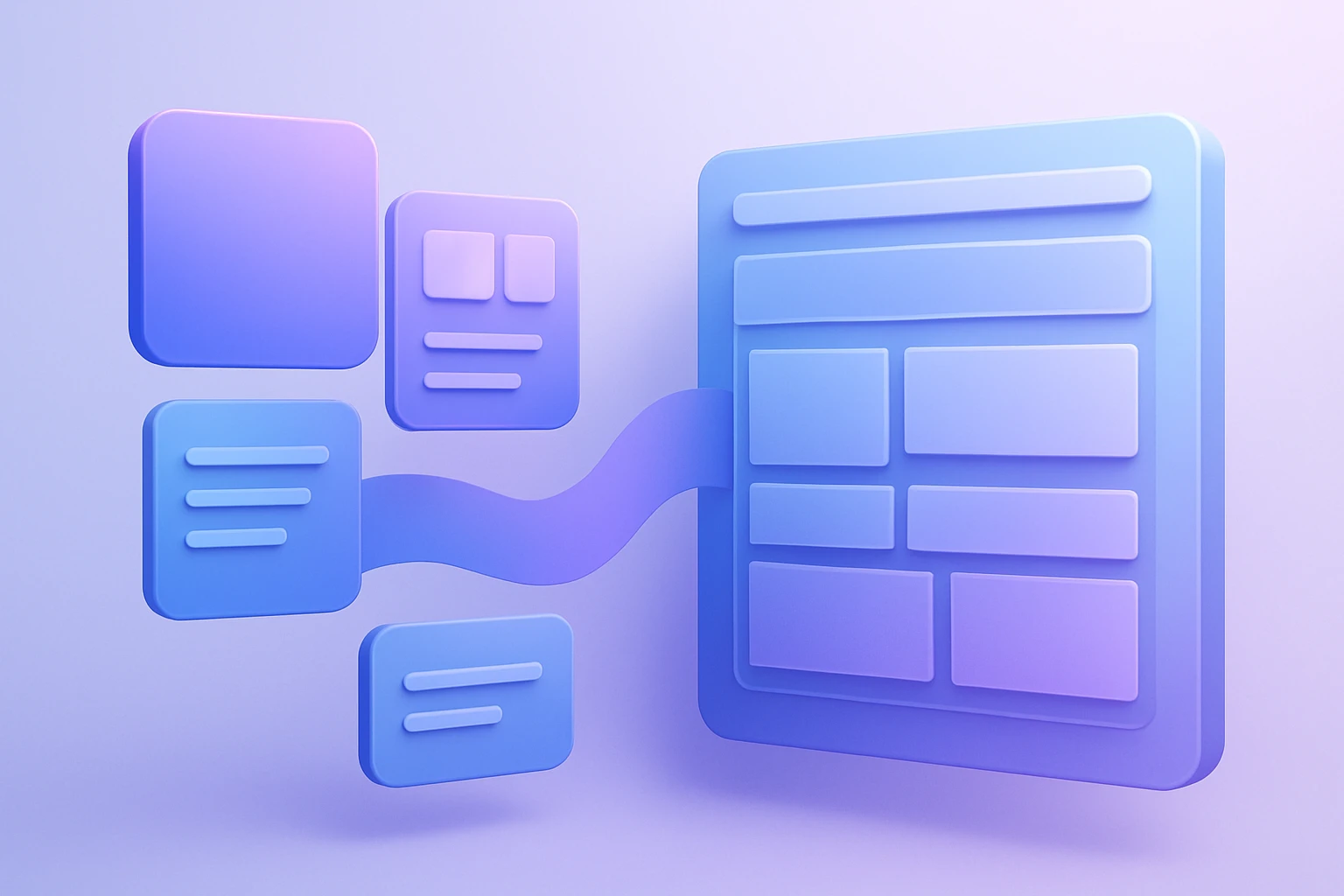
Transforming Visual Design into Scalable Code with Design Tokens The handoff from designer to developer has historically been one of the most painful bottlenecks in web projects, often resulting in inconsistent colors, mismatched typography, and hours of manual refront. However, the integration of design tokens into a WordPress workflow using Figma tokens has revolutionized this Read more…